
Introduction
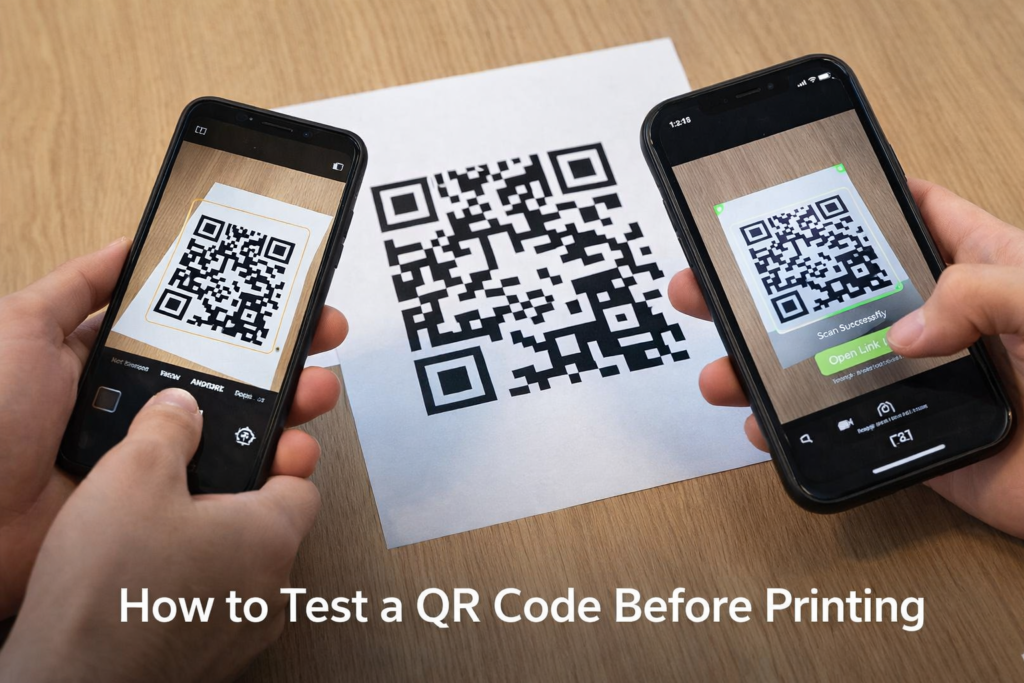
How to Test a QR Code Before Printing is a critical quality control step that prevents expensive mistakes and scan failures. A QR code that works perfectly on your computer screen can completely fail once printed. That difference between digital display and physical print is where most problems occur.
Businesses frequently discover issues only after distributing flyers, packaging, menus, posters, or business cards. By then, the damage is already done. Reprinting costs money. Customers lose trust. Campaigns fail.
QR code testing ensures QR code scan reliability, preserves QR code print quality, and eliminates unnecessary QR code troubleshooting later.
Testing before printing is not optional. It is a professional standard.
Why Testing a QR Code Before Printing Is Important
Understanding how to test a QR code before printing starts with recognizing the risks of skipping testing.
Reprinting Costs
Printing materials in bulk is expensive. If your QR code fails after production:
- All materials must be redesigned
- Everything must be reprinted
- Distribution must restart
Even a small print run can result in significant financial loss.
Brand Credibility Risks
A QR code that does not scan makes a brand look careless. Customers assume:
- The company did not test properly
- The campaign is poorly executed
- The offer may not be trustworthy
Professional brands prioritize QR code testing to protect credibility.
Customer Frustration
Users expect instant scanning.
If they scan and nothing happens:
- They will not try again
- They will not manually type the link
- They will ignore your promotion
QR code scan reliability directly impacts user engagement.
Real-World Failure Causes
Common causes of QR code failure include:
- Low contrast
- Incorrect sizing
- Missing quiet zone
- Blurry exports
- Glossy reflection
- Overdesigned layouts
All of these problems are preventable through proper QR code testing.
How to Test a QR Code Before Printing (Step-by-Step)
Understanding how to test a QR Code before printing properly means going beyond a single quick scan on your own phone. A QR code that works once on one device does not guarantee it will work everywhere after printing. Proper QR code testing requires checking compatibility across multiple devices and scanning environments to ensure strong QR code scan reliability.
Test on Multiple Devices
When learning how to test a QR code before printing, start by scanning it on more than one device. Never rely on just one smartphone.
Test your QR code on:
- An Android phone
- An iPhone
- An older smartphone model
- A tablet, if available
Different devices use different camera systems and decoding algorithms. Some cameras focus faster. Some scanners are more sensitive to contrast issues. A QR code that scans instantly on one device might struggle on another.
You should also test using multiple scanning methods:
- The default camera app
- A third-party QR scanner app
- Messaging or social media camera scanners
If your QR code scans quickly and consistently across different devices and apps, that is a strong indicator of scan reliability. For technical background on QR code structure and standards, you can review the official documentation at QRcode.com.
Test from Different Distances
QR codes must scan at practical distances.
Follow the 10:1 rule:
For every 1 cm of QR code size, it should scan from 10 cm away.
Example:
- 2 cm code → 20 cm scanning distance
- 3 cm code → 30 cm scanning distance
Print a sample. Test from the recommended distance. Then move slightly further away.
If users must move extremely close, the QR code is too small.
Correct sizing is essential for QR code print quality.
Test Under Different Lighting Conditions
Lighting dramatically affects scanning.
Test your QR code in:
- Indoor artificial light
- Natural daylight
- Direct sunlight
- Low-light environments
Glossy surfaces often cause glare. If reflection interferes with scanning, adjust:
- Material finish
- Contrast
- Ink density
Testing under multiple lighting conditions prevents real-world scanning issues.
Test with Different QR Scanner Apps
Not all users rely on built-in camera apps.
Test with:
- Default phone camera
- Free QR scanner apps
- Social media app scanners
Some apps are more sensitive to low contrast or small size issues. Testing broadly reduces future QR code troubleshooting.
How to Test a QR Code Before Printing on Different Materials
When learning how to test a QR code before printing, material selection is just as important as device testing. The same QR code can behave very differently depending on the surface it is printed on. Ink absorption, reflection, curvature, and texture all influence QR code print quality and overall scan reliability.
Before approving mass production, always print a physical sample on the exact material that will be used in final output.
Glossy Paper
Glossy paper is visually appealing but creates one major risk: light reflection.
Under bright lighting, glare can wash out parts of the QR pattern, making it difficult for camera sensors to detect contrast between dark and light areas.
To properly test:
- Print the QR code on the final glossy stock
- Place it under strong indoor lighting
- Test in natural daylight
- Tilt the surface at different angles
- Attempt scanning without adjusting brightness
If scanning only works at certain angles, the material may not be suitable. Matte finishes often provide more consistent results.
Matte Paper
Matte paper typically offers more stable QR code print quality because it reduces reflection.
However, do not assume it is automatically safe. Ink density can vary depending on the printer.
Testing steps:
- Print using the actual production printer
- Inspect edges for bleeding or fading
- Check that black areas are deep and solid
- Scan from normal user distance
If the printed black appears grey or faded, increase print density or adjust design contrast.
Plastic Packaging
Plastic introduces two additional challenges:
- Surface curvature
- Print distortion during sealing or shrink wrapping
Even slight curvature can distort the square structure of the QR code. Distortion affects how scanning software reads the data grid.
To test properly:
- Print a sample label
- Apply it to curved packaging
- Simulate final wrapping conditions
- Scan from different angles
- Check for delayed recognition
If scanning becomes inconsistent after application, consider increasing code size or relocating placement to a flatter area.
Fabric
Fabric presents a unique issue: material movement and ink absorption.
Textile fibers can cause ink bleeding, reducing edge sharpness. Stretching can also deform the QR pattern slightly, affecting QR code scan reliability.
Testing should include:
- Printing directly onto the actual fabric type
- Allowing ink to dry completely
- Inspecting edges under close view
- Gently stretching the fabric
- Scanning before and after stretching
If stretching reduces scanning performance, increase size or choose a higher-contrast design.
Metal Surfaces
Metal surfaces reflect light aggressively and can interfere with scanning, especially under bright conditions.
Laser engraving or etching may reduce contrast depending on finish.
Testing steps:
- Examine contrast between engraved and non-engraved areas
- Scan under direct light
- Scan in shaded environments
- Rotate the surface slightly during scanning
- Test from realistic viewing distance
If scanning only works in limited lighting, increase contrast or adjust surface finish.
Understanding how to test a QR code before printing on different materials ensures the code performs reliably in its final environment. Always test on the actual production material, not just on office paper. Real-world conditions reveal problems that digital previews never show.
Common Mistakes to Check When Testing a QR Code Before Printing
When learning how to test a QR code before printing, always inspect for these issues:
- Missing quiet zone (white border around code)
- Low contrast between background and pattern
- Incorrect size
- Overcrowded design elements
- Inverted colors
- Blurry export resolution
- Pixelation after resizing
- Excessive logo coverage
Each of these reduces QR code scan reliability.
Minimum QR Code Size Testing Checklist
| Print Type | Recommended Size | Test Distance | Pass/Fail |
|---|---|---|---|
| Business Card | 2 x 2 cm | 20 cm | |
| Flyer | 2.5 x 2.5 cm | 25 cm | |
| Poster | 4 x 4 cm | 40 cm | |
| Billboard | 10+ cm | 1+ meter | |
| Packaging | 3 x 3 cm | 30 cm |
Use this table before approving mass printing.
How to Test Dynamic vs Static QR Codes Before Printing
Understanding how to test a QR code before printing becomes especially important when deciding between static and dynamic QR codes. While both types may look identical visually, they behave very differently behind the scenes. Because of that, the testing process must match the code type you are using.
If you are unsure about the technical differences, you can review a detailed comparison here: Static vs Dynamic QR Codes.
Static QR Code Testing
Static QR codes permanently embed the data directly inside the pattern. Once printed, they cannot be modified. That means any mistake made before printing becomes permanent.
When testing a static QR code before printing, verify the following carefully:
- Confirm the URL is typed correctly
- Ensure HTTPS is active and secure
- Check for spelling errors in the link
- Scan the code and confirm it loads the correct page
- Test on multiple devices to confirm consistency
- Confirm the page does not produce 404 errors
Because static codes cannot be edited after printing, accuracy is critical. Even a minor typo makes the code useless.
Before final approval, scan the code multiple times and wait a few minutes between scans. This ensures there are no temporary loading issues or hosting problems.
Dynamic QR Code Testing
Dynamic QR codes work differently. Instead of storing the final URL directly, they redirect through a server. This allows the destination link to be changed later and enables tracking features.
When learning how to test a QR code before printing in a dynamic setup, you must test more than just scanning.
Verify:
- Redirect speed (does it load instantly?)
- Final destination accuracy
- Tracking functionality (if analytics are enabled)
- Expiry settings (confirm no expiration date is active)
- No redirect loops
Scan the code multiple times on different devices. Test across different days if possible. A dynamic QR code depends on server reliability, so stability matters.
If the redirect is slow or inconsistent, investigate before printing. Even a one-second delay can reduce user engagement in marketing campaigns.
Testing both static and dynamic QR codes thoroughly ensures long-term reliability and prevents costly post-print QR code troubleshooting
TTesting QR Codes for Marketing Campaigns
If your QR code links to a landing page, testing must extend beyond scanning.
Check Landing Page Speed
Slow loading pages reduce conversion rates even if the QR code works perfectly.
Verify Mobile Responsiveness
Open the page on different screen sizes.
Confirm:
- Proper layout
- Readable text
- Working buttons
- Functional forms
Confirm HTTPS Security
Ensure:
- SSL certificate is valid
- No browser security warnings appear
Security warnings reduce trust instantly.
Test for Broken Links
Scan repeatedly across different days to ensure hosting stability and link accuracy.
Pre-Print QR Code Testing Checklist
Before sending your file to print, follow this complete checklist:
- Confirm correct URL or data
- Test on Android device
- Test on iPhone
- Test using third-party scanner app
- Test from recommended distance
- Test in bright lighting
- Test in low lighting
- Print physical sample
- Check quiet zone intact
- Confirm high contrast
- Confirm correct size
- Verify no pixelation
- Confirm landing page loads quickly
- Confirm HTTPS secure
- Scan at least 10 times successfully
If every item passes, printing risk is minimal.
FAQ
How do I know if my QR code will scan after printing?
To properly understand how to test a QR code before printing, print a physical sample and test it on multiple devices under different lighting conditions. If it scans instantly every time, reliability is high.
Can a QR code work digitally but fail when printed?
Yes. Even when learning how to test a QR code before printing, remember that screen display and print output differ. Low contrast or small size can cause print-only failures.
What is the best way to test a QR code?
The best approach to how to test a QR code before printing is to test on multiple devices, from various distances, under different lighting conditions, and on the final printed material.
Should I test a QR code before printing business cards?
Yes. If you are applying how to test a QR code before printing correctly, business cards require extra attention because they typically use smaller QR codes.
How many times should I test before printing?
When following proper how to test a QR code before printing practices, aim for at least 10–15 successful scans across devices and conditions.
Does QR code size affect testing?
Yes. When understanding how to test a QR code before printing, remember that smaller QR codes are more sensitive to print distortion and scanning distance limitations.